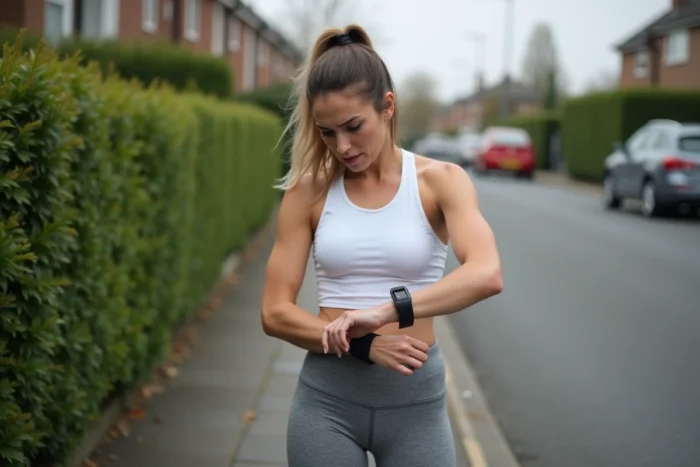
Your pedometer displayed an accurate count yesterday, and this morning, nothing. The counter remains stuck at zero or progresses in inconsistent jumps. The problem affects both smartwatches and walking apps installed on smartphones. Several technical causes explain this blockage, and some have emerged recently with updates to Android and iOS systems.
Health Connect on Android: the invisible layer that cuts off counting
Most online guides point to app permissions or battery settings. They overlook a key link that has become central since Android 13: Health Connect. This interface, pushed by Google, serves as a gateway between the phone’s sensors and all third-party apps that count your steps.
The problem occurs after a system or app update. The “Read and write steps” permissions granted to your walking app are sometimes reset without notification. The phone’s internal pedometer continues to function, but the app you are checking no longer has access to the data. Result: zero steps displayed while the sensor records normally.
To check, open your Android smartphone settings, search for “Health Connect,” then ensure that your walking app has the permissions to access physical activity. If you’re looking to understand why my pedometer isn’t working, this check should be at the top of the list before any other actions.

Battery optimization and forced shutdown of background apps
Android manufacturers (Samsung, Xiaomi, Oppo, Huawei) are implementing increasingly strict energy-saving policies. These restrictions kill the background processes of step counting apps without notifying the user.
The mechanism is simple: to extend battery life, the system suspends or closes apps it deems non-priority as soon as the screen turns off. Your pedometer then stops receiving data from the accelerometer sensor. You walk for an hour, unlock the phone, and the app has recorded nothing.
Each brand applies its own restrictions, complicating diagnosis. On a Samsung Galaxy, the setting is found in “Device care” then “Battery.” On Xiaomi, you need to go through “Battery saver” and disable restrictions for the concerned app. On Huawei, management is hidden in “App battery management.”
- Disable battery optimization for your pedometer app in the system settings.
- On Xiaomi and Oppo phones, enable the “auto-start” of the app to prevent it from being closed in the background.
- Check that no global power-saving mode (ultra-saving mode, night mode) is blocking background activity.
This is not a bug in the app. It’s a decision by the operating system that directly conflicts with the operation of a pedometer, which needs to run continuously to record every movement.
Faulty or poorly calibrated accelerometer
When the problem does not stem from permissions or battery issues, the physical sensor itself may be at fault. The pedometer, whether integrated into the smartphone or a smartwatch, relies on a sensor that detects body oscillations with each step.
A shock, moisture infiltration, or simply wear can alter the sensitivity of this sensor. Counting then becomes erratic: some steps are recorded, others are not, with no apparent logic. On a smartwatch worn too loosely on the wrist, the sensor struggles to distinguish an arm movement from a real walking step.
How to isolate a sensor problem
Install an accelerometer testing app (several are available for free on the stores). Gently shake your device: the values should vary in real-time across the three axes. If one axis remains fixed or if the values seem aberrant, the hardware sensor is likely faulty.
On smartwatches, a complete restart (not just putting it to sleep) sometimes recalibrates the sensor. On smartphones, also check that the protective case is not blocking the motion sensor, a phenomenon more common than one might think with thick or magnetic cases.
Synchronization between smartwatch and health app on iPhone
On the Apple ecosystem, step counting relies on communication between the Apple Watch (or the iPhone sensor), the Health app, and any third-party apps. When the synchronization between these elements breaks, the Health app displays a frozen counter while the watch has indeed recorded the activity.
Several users report this malfunction after an update of watchOS or iOS. The resolution procedure involves checking the data sources in the Health app:
- Open the Health app, then “Browse,” “Activity,” “Steps.”
- Check in “Data Sources & Access” that your Apple Watch or iPhone appears as an active source.
- If multiple sources are listed (old phone, old watch), remove those that are no longer in use to avoid data conflicts.
- A unpairing and then re-pairing of the watch resolves the most persistent cases but requires reconfiguring the device.
On Google Fit, a similar type of conflict exists when the email address associated with the Google Fit account differs from that of the walking app. Step data is then recorded on one account but accessed on another.
Carrying the phone and watch position: an underestimated factor
The pedometer only counts correctly if it detects the characteristic movement of walking. A smartphone stored in a handbag, placed on a desk, or slipped into a loose jacket pocket produces very different oscillations from a phone in a pants pocket.
For a smartwatch, a strap that is too loose or worn too low on the wrist skews detection. The sensor interprets the micro-movements of the strap as noise and filters out real steps. Tightening the strap a notch and wearing the watch two fingers above the wrist bone significantly improves counting accuracy.
The reliability of a pedometer depends on a complete chain: hardware sensor, operating system, health data layer, app permissions, and physical position of the device. When the counter gets stuck, the failure rarely lies in just one of these links. Methodically tracing this chain, from the simplest (device position) to the most technical (Health Connect permissions), remains the most reliable way to regain accurate counting.